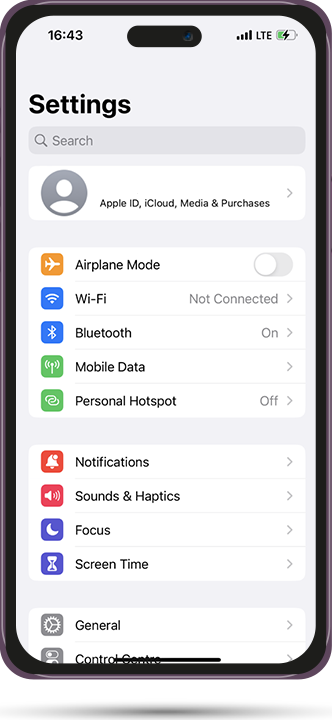
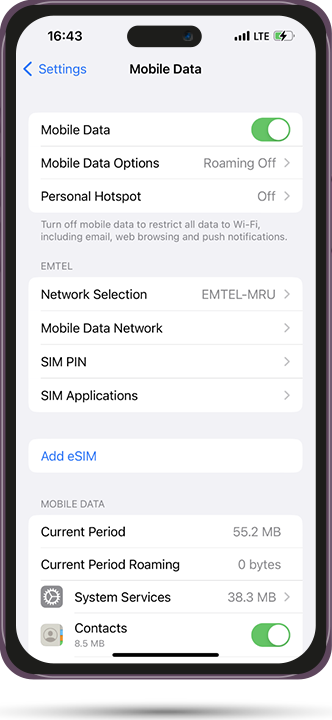
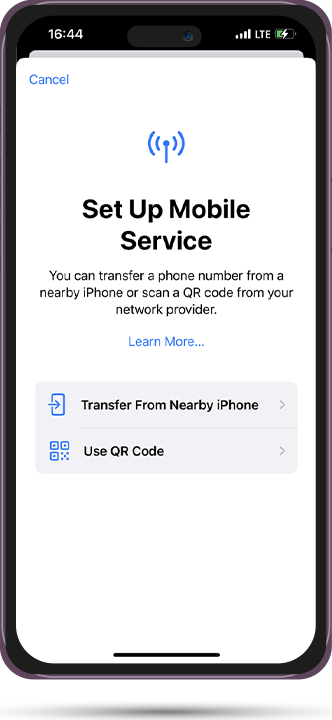
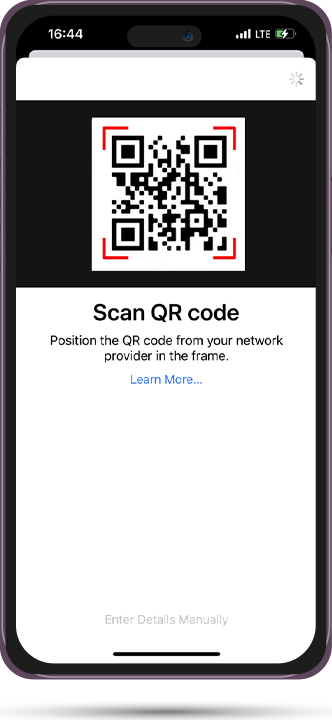
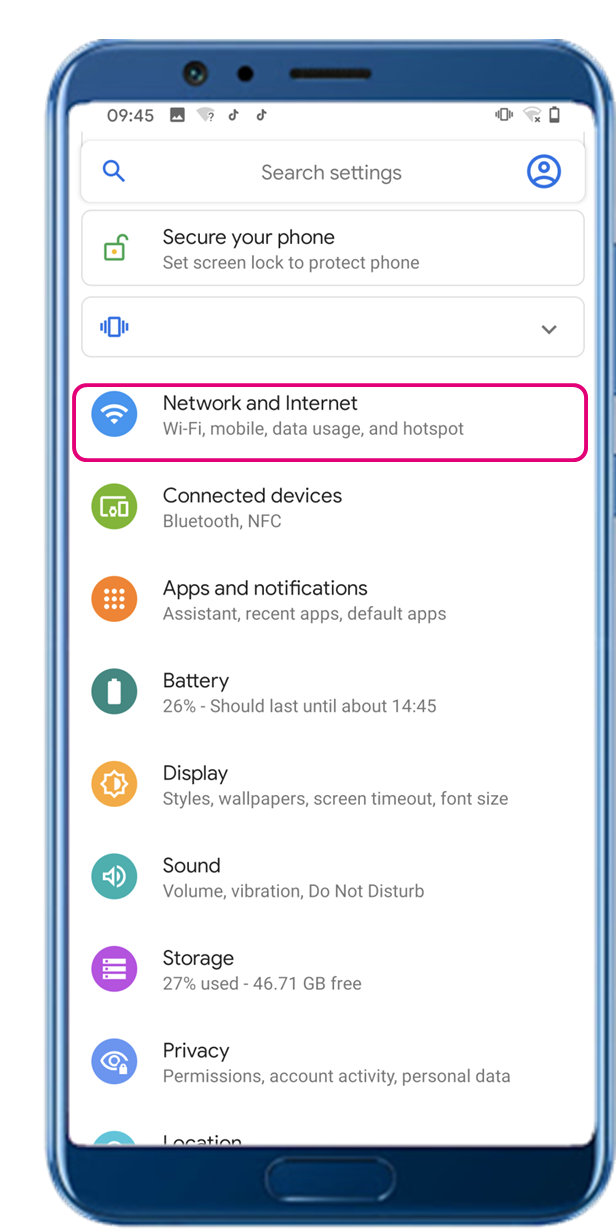
- In “Settings,” select “Network and Internet.”
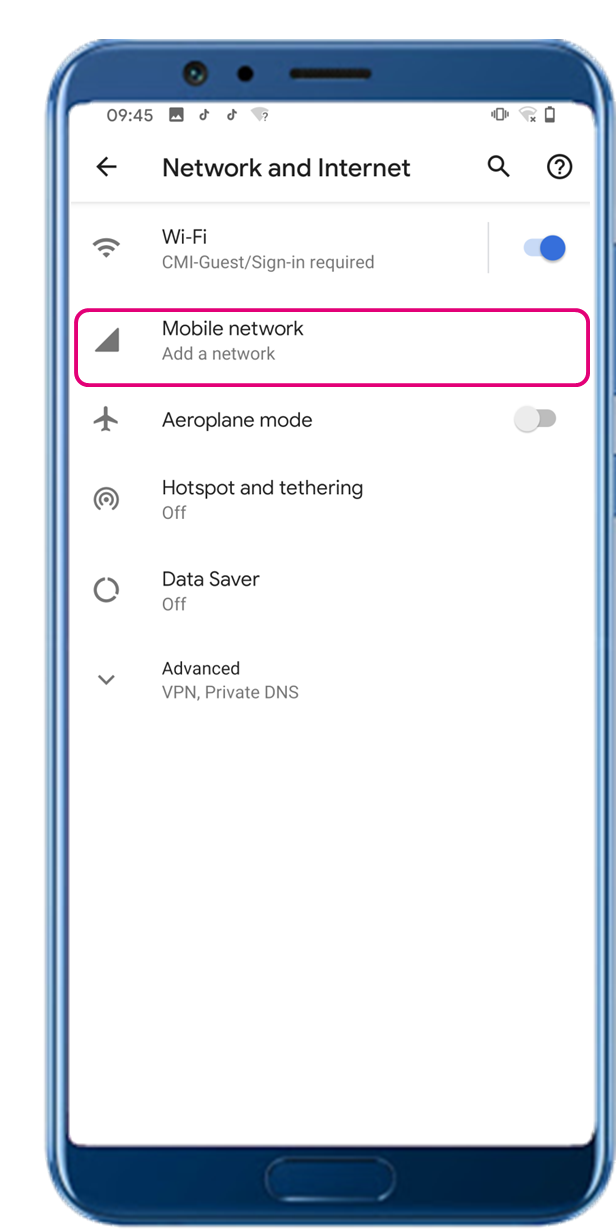
- Select “Mobile network.”
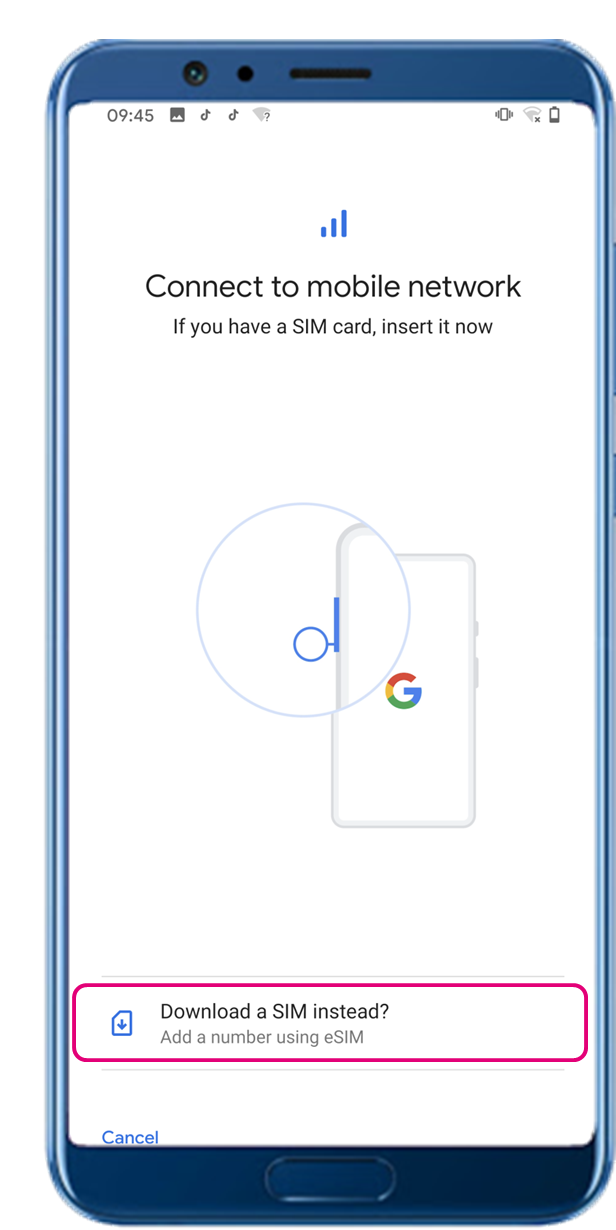
- Select “Download a SIM instead?”
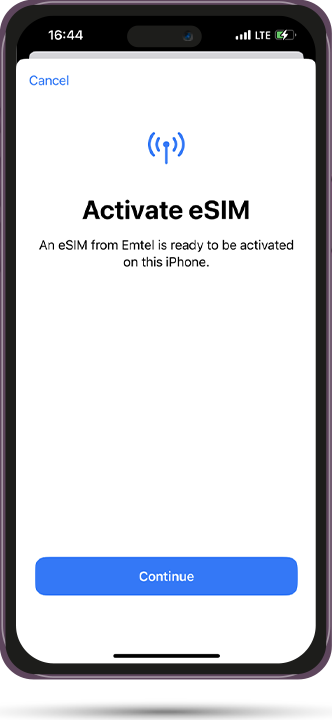
- Scan the QR code to download the eSIM profile
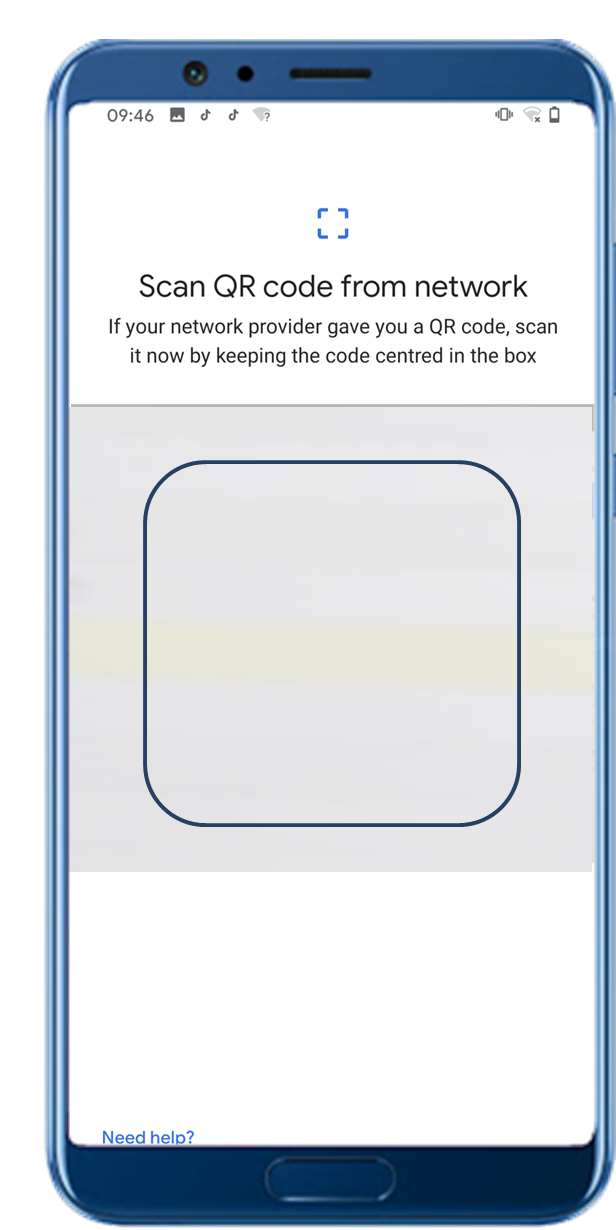
(Display name and steps may be different, depending on the phone model and OS system version.)
Since eSIM is a new technology, certain handsets may face problems with hotspot sharing using eSIM. If you have difficulties with hotspot sharing, please refer to the FAQ. If the problem persists, please contact our Customer Service team.
FAQ
1. How to download eSIM after purchase?
The system will send you the QR code to download the eSIM through the email you provided.
2. What to do if you can’t receive the QR code to download eSIM?
Please contact our customer service or send an email to contact@safa-esim.com to resend the QR code.
3. Can I download an eSIM profile to a different handset?
No, each eSIM can only be downloaded on one handset.
4. Why can I not “Add Data Plan” after scanning the QR code?
Please ensure the handset is connected to WiFi and retry.
5. How to switch the mobile data to eSIM?
Please check that the mobile data is turned on, then select “Mobile Data—Data Plans—Turn On This Line.” If the problem persists, please contact our Customer Service team.
6. How to check ICCID?
If the mobile data is turned on, please check the ICCID in “General – About – ESIM.”
7. I already activated the eSIM, but the handset cannot connect to mobile data. What can I do?
Please restart your handset or upgrade the iOS version to retry.
8. Why can’t I use the hotspot with eSIM?
Due to different handset versions, if you face hotspot sharing issues with your eSIM, please follow the steps below:
1) Ensure your phone is not a contract or locked phone
2) Switch off the VPN
3) Switch on the data roaming
4) Set the eSIM as primary
5) Ensure the latest iOS version is installed
6) Use a physical SIM to connect to the Internet, then switch on the personal hotspot function, then switch to connect to the Internet using eSIM. Please retry several times and restart the handset.
7) If the problem persists, please contact our Customer Service team.
 USD
USD  Djiboutian Franc (DJF Fdj)